 EdgeNote
How to keep Sticky Notes always on top in Windows 11 and 10
You want a note to stay in view while you work, not vanish behind the next window you click. Here are three ways to do it, two of them free from Microsoft.
Updated October 2026. We make EdgeNote, the third option below.
The short answer
- New Microsoft Sticky Notes: pop the note out into its own window, then click the pin icon. Not every version shows the pin.
- Any app, including classic Sticky Notes: install Microsoft's free PowerToys, click the note, and press Win + Ctrl + T.
- EdgeNote: every note on the desktop has its own pin button, and pinned notes stay above your other apps.
1. The new Microsoft Sticky Notes
The classic Sticky Notes app never had an "always on top" option, which is why so many people go looking for one. The new Sticky Notes, which Microsoft has built into OneNote, added a pin.
- Open Sticky Notes from the Start menu (how to find and use it).
- Open the note you want and use the pop-out button so it gets its own window.
- Click the pin icon at the top of that window. The note now stays above other windows until you unpin it.
2. PowerToys "Always On Top" (works with any window)
PowerToys is a free set of extra tools from Microsoft. One of them, Always On Top, pins whichever window you choose above all the others. That includes the classic Sticky Notes app, Notepad, a calculator or a video.
- Install Microsoft PowerToys from the Microsoft Store and open it once.
- Click the note (or any window) you want to keep on top.
- Press Win + Ctrl + T. A coloured border shows it's pinned.
- Press the same keys again to unpin it. Closing the window unpins it too.
3. EdgeNote: notes made to stay in view
EdgeNote keeps your notes in a panel at the right edge of the screen, and any note can be popped out onto the desktop as its own window. Desktop notes float above whatever you're working in, and each one has a pin button to switch that on or off.
- Open EdgeNote by pushing your mouse to the right edge of the screen.
- Use the note's desktop button to send it out onto the desktop.
- That's it: desktop notes are pinned on top by default, shown by the red pin on the note's toolbar. Click the pin if you'd rather the note sat behind your other windows.
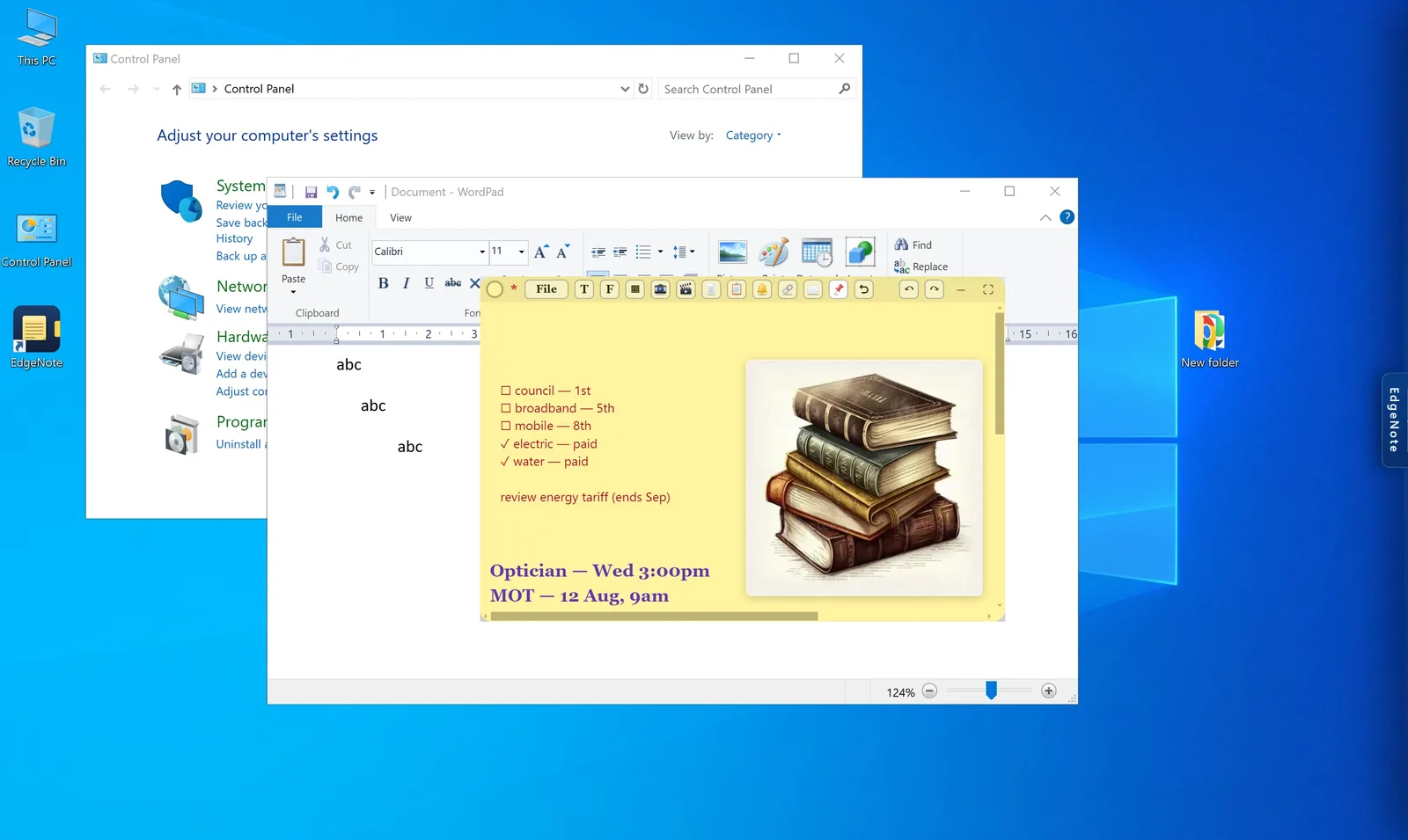
You don't even have to pin a note to keep it close. The whole panel slides in over any app when you push the mouse to the screen edge, and slides away again when you move off.
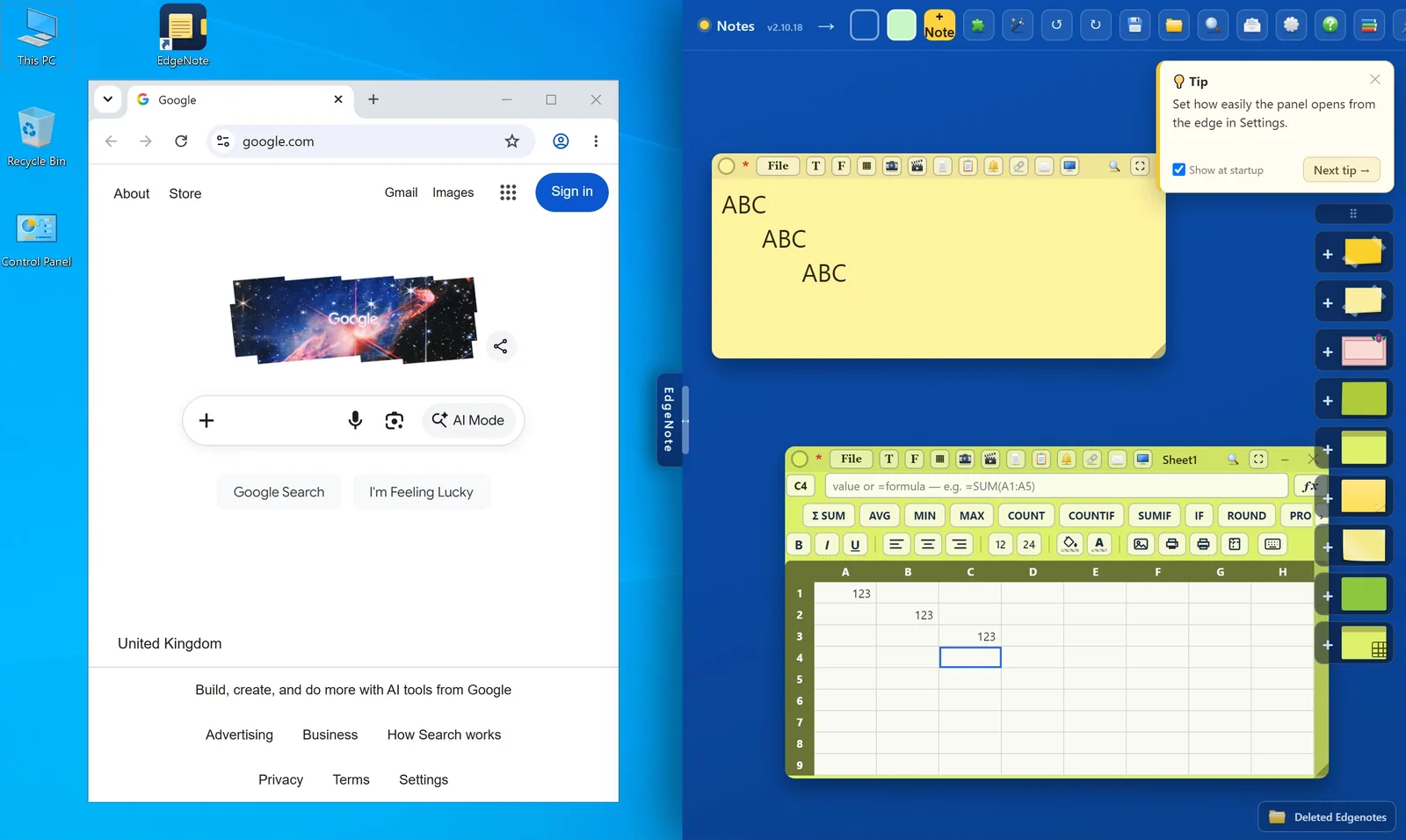
Alongside plain notes you get checklists, pictures, spreadsheets and widgets, and everything is stored on your own PC with no account. If you're weighing up other apps too, see our comparison of Microsoft Sticky Notes alternatives.
Questions
Can classic Sticky Notes stay on top by itself?
No. The classic app has no pin or "always on top" setting. Use PowerToys Always On Top with it, or move to the new Sticky Notes or another app with a pin.
Is there a built-in Windows shortcut to keep any window on top?
Not in Windows itself. Win + Ctrl + T comes from PowerToys, so it only works once PowerToys is installed and running.
How do I stop a note staying on top?
Click the pin again in Sticky Notes or EdgeNote. With PowerToys, click the window and press Win + Ctrl + T again.
Will a pinned note stay put after I restart my PC?
With PowerToys, no: pins are cleared when the window closes, so you pin it again next time. EdgeNote remembers where your desktop notes were and whether they were pinned.