 EdgeNote
Sticky notes for Windows 11 and 10
Windows has had a free sticky notes app for years, and Microsoft has now added a newer one to OneNote. Here's how to open them, keep notes on your desktop, and back them up so you don't lose them.
Updated October 2026. We make EdgeNote, another option covered below.
The short answer
- Open Sticky Notes: press the Windows key, type Sticky Notes and press Enter. If it isn't there, get "Microsoft Sticky Notes" free from the Microsoft Store.
- The new Sticky Notes from OneNote: open it once from the top-right of the OneNote ribbon, then use Win + Alt + S.
- Don't lose them: sign in with a Microsoft account to sync, or copy the notes file to a backup (steps below).
1. Microsoft Sticky Notes, built into Windows
- Press the Windows key, type Sticky Notes and open it.
- Click + to make a new note. Each note is its own small window you can drag anywhere on your desktop.
- Click the … menu on a note to change its colour, or close it to hide it. Your notes stay in the notes list until you delete them.
Using sticky notes as a to-do list? See our pick of the best to-do list apps for Windows.
2. The new Sticky Notes from OneNote
Microsoft built a newer Sticky Notes into OneNote for Windows (version 2402 or later). According to Thurrott, it adds:
- a screenshot button that turns whatever's on screen into a note
- a link back to the source, such as the website or document you were looking at
- search inside pictures, so words in screenshots can be found
Open it the first time from the top-right corner of the OneNote ribbon. After that, use the Start menu or Win + Alt + S. Sign in with your Microsoft account and your existing sticky notes appear.
How to back up your sticky notes
The easy way: open Sticky Notes, click the settings cog, sign in with your Microsoft account and choose Sync now. Your notes are then stored online and come back when you sign in on another PC.
Without signing in: copy the notes file itself.
- Press Win + R, paste this and press Enter:
%LocalAppData%\Packages\Microsoft.MicrosoftStickyNotes_8wekyb3d8bbwe\LocalState - Close Sticky Notes, then copy the file called plum.sqlite to a USB stick or cloud folder.
- To restore, close Sticky Notes and copy the file back into the same folder.
Folder location as given by wintips.org. It applies to the classic Sticky Notes app.
3. EdgeNote: sticky notes that slide in from the screen edge
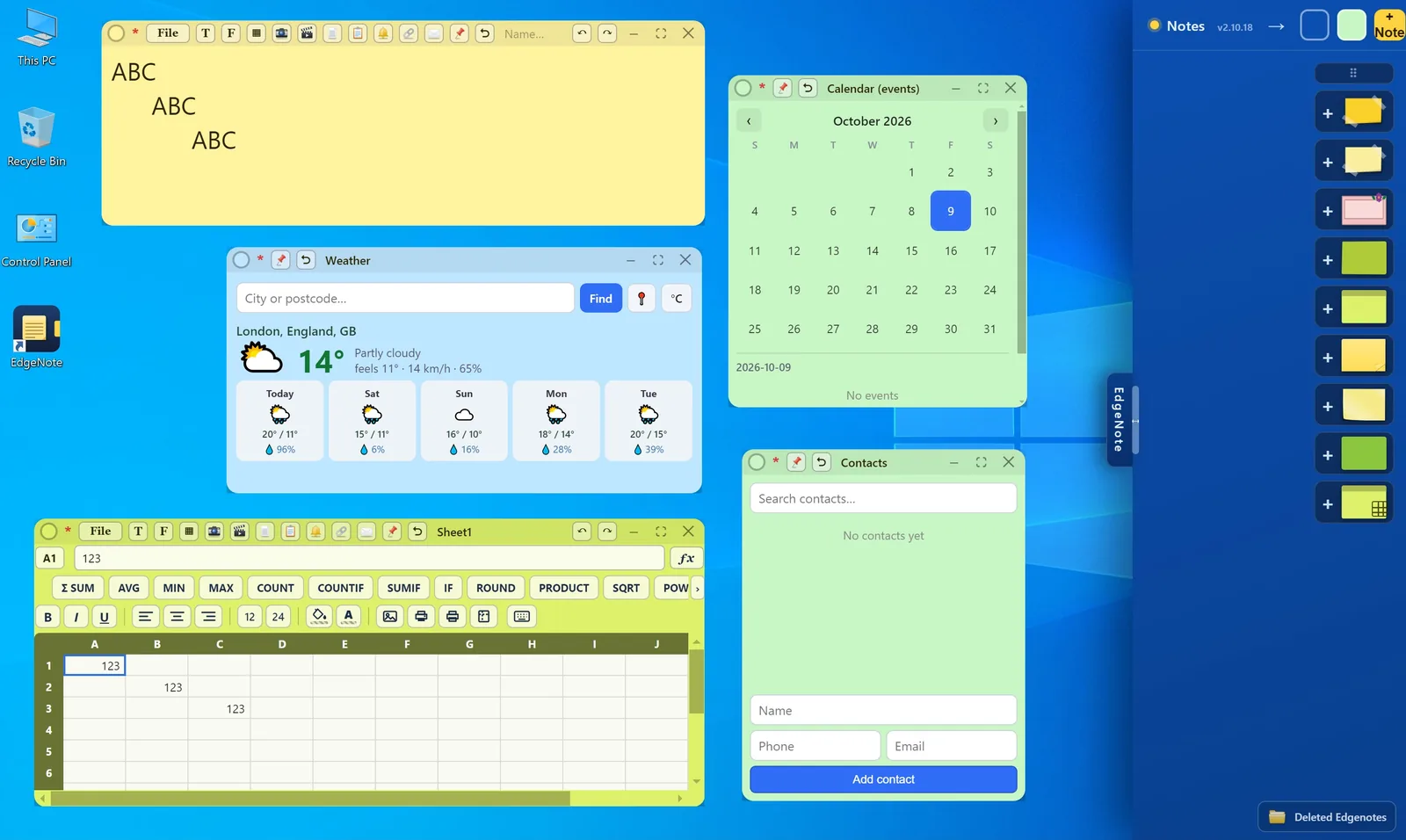
If you want more than plain notes, EdgeNote keeps them in a panel at the right edge of your screen. Push your mouse to the edge and it slides in; move away and it tucks itself back. Any note can be popped out onto the desktop, and pinned on top of other windows.
- Sticky notes in plain, taped, floral and art designs, plus checklists, spreadsheets and drawings
- Widgets on the desktop: calendar, weather, reminders, calculator and more
- Everything stored on your PC, with no account needed, and backed up to a single file you can load on another PC
Questions
Where are sticky notes stored in Windows 11?
The classic Sticky Notes app keeps them in a file called plum.sqlite in the folder shown above. If you're signed in, they're also synced to your Microsoft account.
Why did my sticky notes disappear?
Check the notes list: open Sticky Notes and look for the list of all notes, since closed notes stay there. If you signed in with a different Microsoft account, sign back into the original one. If you kept a copy of plum.sqlite, you can restore it.
How do I put a note on my desktop?
Open Sticky Notes and create a note. It appears as a small window on your desktop that you can drag anywhere. In EdgeNote, use a note's desktop button to send it out of the panel onto the desktop.
Can a sticky note stay on top of other windows?
The classic app can't on its own. See our guide to keeping sticky notes on top for three ways to do it.
Is Microsoft Sticky Notes free?
Yes. It's free with Windows 10 and 11, and the newer Sticky Notes comes with OneNote for Windows.