 EdgeNote
How to add notes to your desktop in Windows
Three ways to keep notes on your Windows 11 or 10 desktop, from the free Sticky Notes app to a note that stays on top of every window. Pick the one that fits how you work.
Updated October 2026. We make EdgeNote, one of the options below.
The short answer
- Quickest: press the Windows key, type Sticky Notes and open it. Each note appears as a small window on your desktop.
- Simplest: right-click the desktop, choose New, then Text Document, and type your note in it.
- For notes always in view: a desktop notes app such as EdgeNote can pin a note on top of other windows, so it never gets buried.
1. Microsoft Sticky Notes
- Press the Windows key, type Sticky Notes and press Enter. If it isn't installed, get "Microsoft Sticky Notes" free from the Microsoft Store.
- Click + to start a note. It opens as its own small window you can drag anywhere on the desktop.
- Leave your notes open when you shut down, and they come back next time Sticky Notes starts.
Good for quick reminders. The catch: Sticky Notes sits behind other windows like any app, so it's easy to lose under whatever you're working on. Our sticky notes for Windows guide covers backing them up and the newer Sticky Notes in OneNote.
2. A text file on the desktop
- Right-click an empty part of the desktop and choose New, then Text Document.
- Give it a name, such as Notes, and press Enter.
- Double-click it to open it in Notepad, type your note, and press Ctrl + S to save.
It's always there as an icon, works offline and backs up with the rest of your files. But you have to open it to see what's in it, so it isn't much of a reminder.
3. A desktop notes app
If you want notes that are always in view, can stay on top of other windows, or hold more than a few lines, a dedicated app does it better. Simple Sticky Notes, Stickies and Notezilla are popular choices, and we compare them in Sticky Notes alternatives.
EdgeNote
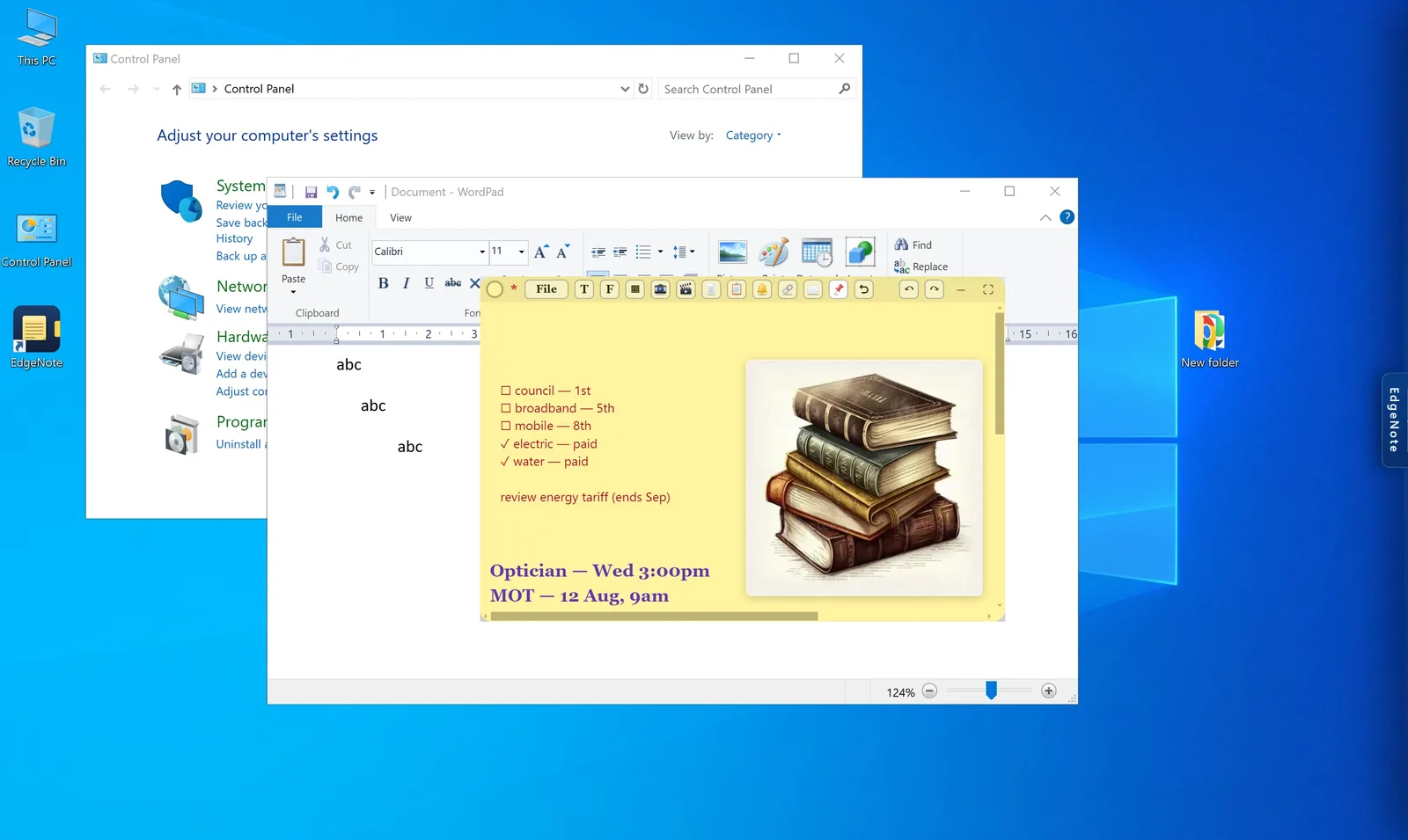
EdgeNote keeps your notes in a panel at the right edge of the screen. Push your mouse to the edge and they slide in over whatever you're doing; move away and they tuck back. Any note can also go out onto the desktop:
- Make a note in the panel.
- Click the note's desktop button to send it out onto the desktop.
- Click the pin to keep it on top of other windows, or unpin it to let it sit behind them.
- Sticky notes in plain, taped, floral and art designs, plus checklists, spreadsheets and drawings
- Reminders, a calendar and other widgets that can sit on the desktop too
- Notes stay on your PC, with no account, and are searchable
Which should you use?
- A few quick reminders: Microsoft Sticky Notes.
- A list you check now and then: a text file on the desktop.
- Notes you need in view while you work: a desktop notes app that pins notes on top.
Related guides
Questions
Is there a notes app for Windows?
Yes. Windows 10 and 11 come with Microsoft Sticky Notes, and Notepad for plain text. OneNote is free too, for longer notes in notebooks.
What's the notes app that stays on your desktop?
Microsoft Sticky Notes puts notes on the desktop as small windows, though they go behind other apps. Apps such as EdgeNote, Notezilla and Stickies can keep a note on top of every window. See how to keep notes on top.
Is the Sticky Notes app free?
Yes. Microsoft Sticky Notes is free with Windows 10 and 11, and from the Microsoft Store if it's missing.
Can I get Apple Notes on Windows?
There's no Apple Notes app for Windows, but you can read and edit your notes at icloud.com in a web browser, signed in with your Apple Account.
Do my desktop notes get backed up?
A text file on the desktop is backed up with the rest of your files. Sticky Notes syncs if you sign in with a Microsoft account. EdgeNote saves everything to a single backup file you can copy or load on another PC.