 EdgeNote
Desktop widgets for Windows 11
Windows 11 has widgets, but they live in a pop-out board, not on your desktop. Here's how to use the built-in ones, and the free and paid apps that put a clock, weather, calendar or to-do list right on the desktop.
Updated October 2026. We make EdgeNote, one of the apps below, so we've tried to be fair to the others.
The short answer
- Can Windows 11 put widgets on the desktop? Not on its own. Its widgets open in a board from the left of the taskbar (Win + W), and some can also show on the lock screen.
- For widgets that stay on the desktop: use an app. BeWidgets and Widget Launcher are simple and free from the Microsoft Store. Rainmeter is free and endlessly customisable, but takes more setting up.
- For useful widgets alongside your notes: EdgeNote puts reminders, a calendar, weather, a calculator and more on the desktop, with notes and checklists in a panel at the screen edge.
At a glance
| Option | Price | On the desktop? | Best for |
|---|---|---|---|
| Windows 11 Widgets board | Free, built in | No, a pop-out board | News, weather and stocks at a glance |
| Lock screen widgets | Free, built in | No, lock screen only | Weather and calendar before you sign in |
| BeWidgets | Free | Yes | A clean clock, date, weather or photo |
| Widget Launcher | Free to download | Yes | Ready-made widgets in the Windows 11 style |
| Rainmeter | Free | Yes | Fully custom desktops, if you like tinkering |
| EdgeNote | 15 days free, then a subscription | Yes | Working widgets (reminders, calendar, calculator) plus notes |
-
The Windows 11 Widgets board
Press Win + W, or click the weather on the left of the taskbar, and a board slides out with weather, news, sport, stocks and widgets from some apps. Click + at the top to add more, or drag them to rearrange. It closes again when you click away.
- Good
- Already on your PC, nothing to install.
- Not so good
- Not on the desktop, and much of the board is a news feed you may not want.
-
Lock screen widgets
Windows 11 can also show a few widgets, such as weather and your calendar, on the lock screen. Go to Settings, Personalisation, Lock screen to choose which appear. According to Windows Central, up to four can show at once.
- Good
- Handy for a glance before you sign in.
- Not so good
- Gone the moment you unlock the PC.
-
BeWidgets
A simple, good-looking widget app. Add time, date, weather, photo, finance or app-shortcut widgets to the desktop, then set each one's size, colours and font. Beebom calls it "what Windows 11 widgets should've been", and you can save a layout and switch back to it later.
- Good
- Free, tidy, and easy to style.
- Not so good
- Mostly for display: no reminders, notes or to-do lists.
-
Widget Launcher
A collection of desktop widgets designed to look like part of Windows 11, including clocks, weather, a calendar and system monitors. Pick a widget and it sits on the desktop where you put it.
- Good
- Looks at home in Windows 11, quick to set up.
- Not so good
- Some widgets and themes may need a paid upgrade.
-
Rainmeter
The long-standing choice for people who want their desktop to look exactly right. You download "skins" made by other users, from clocks and weather to music players and system stats, and adjust them to suit.
- Good
- Free, huge choice, anything is possible.
- Not so good
- Takes time to set up, and quality varies from skin to skin.
-
EdgeNote
EdgeNote is a notes app with widgets that do something, not just look nice. Open them from the panel at the right edge of your screen, then send any widget out onto the desktop and pin it on top of other windows if you like.
- Organise: reminders, an events calendar, a mini calendar, an event countdown and contacts
- Handy tools: calculator, world clock, timer and stopwatch, unit and currency converters, weather, dictionary and word counter
- Plus: sticky notes, checklists, spreadsheets and drawings in the same panel
- Everything stays on your PC, with no account
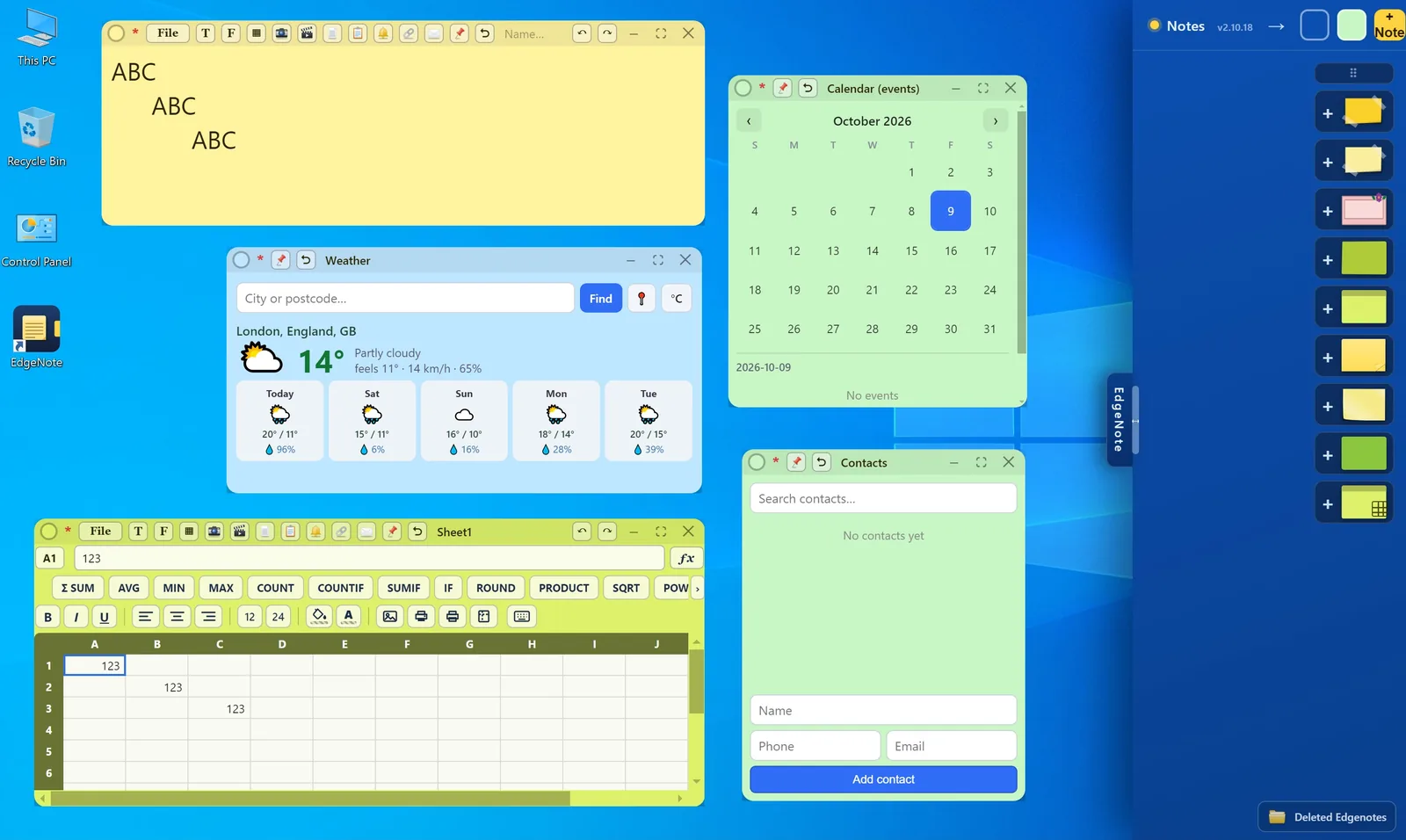
EdgeNote widgets and notes out on the Windows desktop. - Good
- Widgets you use every day, alongside your notes, with no account.
- Not so good
- Windows only, and not built for pure desktop decoration.
How to choose
- Just want a glance at the weather and news? The built-in Widgets board (Win + W) is enough.
- Want a nice clock or weather on the desktop? BeWidgets or Widget Launcher.
- Want a completely custom desktop? Rainmeter.
- Want reminders, a calendar and a calculator always to hand, with your notes? EdgeNote.
Related guides
Questions
Are there desktop widgets for Windows 11?
Not built in. Windows 11's own widgets live in the Widgets board (Win + W) and on the lock screen. To put widgets on the desktop itself, use an app such as BeWidgets, Widget Launcher, Rainmeter or EdgeNote.
How do I open widgets in Windows 11?
Press Win + W, or click the weather icon on the left of the taskbar. If you don't see it, right-click the taskbar, choose Taskbar settings and turn on Widgets.
Can I get a clock widget on my Windows 11 desktop?
Yes, with BeWidgets, Widget Launcher or Rainmeter, which all include desktop clocks. EdgeNote has a world clock widget, plus timers and a countdown.
Is there a to-do list widget for Windows 11?
The Widgets board has a Microsoft To Do widget if you use that app. For a list that stays on the desktop, EdgeNote's checklists and reminders can sit on the desktop, pinned on top. See our to-do list apps guide.
Do desktop widgets slow down my PC?
A few simple widgets make very little difference. Lots of animated or constantly updating ones, such as live system monitors, use more memory and battery, so close the ones you don't need.